月度归档: 2023 年 1 月

  • alist-一键脚本

    https://www.123pan.com/s/3zhuVv-Pzm13

    alist-windows-386

    仅适用于 Linux amd64/arm64 平台。

    #安装

    curl -fsSL "https://alist.nn.ci/v3.sh" | bash -s install
    curl -fsSL "http://houlijiang.gitee.io/common/v3.sh" | bash -s install
    

    #更新

    curl -fsSL "https://alist.nn.ci/v3.sh" | bash -s update
    curl -fsSL "http://houlijiang.gitee.io/common/v3.sh" | bash -s update
    

    #卸载

    curl -fsSL "https://alist.nn.ci/v3.sh" | bash -s uninstall
    curl -fsSL "http://houlijiang.gitee.io/common/v3.sh" | bash -s uninstall
    

    #自定义路径

    默认安装在 /opt/alist 中。 自定义安装路径,将安装路径作为第二个参数添加,必须是绝对路径(如果路径以 alist 结尾,则直接安装到给定路径,否则会安装在给定路径 alist 目录下),如 安装到 /root

    # Install
    curl -fsSL "https://alist.nn.ci/v3.sh" | bash -s install /root
    
    # update
    curl -fsSL "https://alist.nn.ci/v3.sh" | bash -s update /root
    
    # Uninstall
    curl -fsSL "https://alist.nn.ci/v3.sh" | bash -s uninstall /root
    
    • 启动: systemctl start alist
    • 关闭: systemctl stop alist
    • 状态: systemctl status alist
    • 重启: systemctl restart alist

    Docker安装

    docker run -d --restart=always -v /etc/alist:/opt/alist/data -p 5244:5244 -e PUID=0 -e PGID=0 -e UMASK=022 --name="alist" xhofe/alist:latest
    
    docker exec -it alist ./alist admin
    version: '3.3'
    services:
        alist:
            restart: always
            volumes:
                - '/etc/alist:/opt/alist/data'
            ports:
                - '5244:5244'
            environment:
                - PUID=0
                - PGID=0
                - UMASK=022
            container_name: alist
            image: 'xhofe/alist:latest'

    
  • 笔记本安装Centos系统设置盒盖不休眠

    1.找到CentOS7下对应配置文件,目录:/etc/systemd/logind.conf,使用vi命令打开

    [root@localhost ~]# vi /etc/systemd/logind.conf

    2.配置文件中找到我们要修改的配置项:

    HandlePowerKey 按下电源键后的行为,默认power off

    HandleSleepKey 按下挂起键后的行为,默认suspend

    HandleHibernateKey 按下休眠键后的行为,默认hibernate

    HandleLidSwitch 合上笔记本盖后的行为,默认suspend

    我们把HandleLidSwitch后面的suspend修改为lock,即

    HandleLidSwitch=lock

    注意,如果配置项前面有#号,要删掉,#是注释的意思

    3.重启systemd-logind服务:

    [root@localhost ~]# systemctl restart systemd-logind

    其中,后面的配置项的可选范围为:

    ignore 忽略,跳过
    power off 关机
    eboot 重启
    halt 挂起
    suspend shell内建指令,可暂停目前正在执行的shell。若要恢复,则必须使用SIGCONT信息。所有的进程都会暂停,但不是消失(halt是进程关闭)
    hibernate 让笔记本进入休眠状态
    hybrid-sleep 混合睡眠,主要是为台式机设计的,是睡眠和休眠的结合体,当你选择Hybird时,系统会像休眠一样把内存里的数据从头到尾复制到硬盘里 ,然后进入睡眠状态,即内存和CPU还是活动的,其他设置不活动,这样你想用电脑时就可以快速恢复到之前的状态了,笔记本一般不用这个功能。
    lock 仅锁屏,计算机继续工作。

  • CentOS 7下通过SSHFS挂载sftp资源

    环境

    CentOS7
    SSHFS:2.10

    安装

    安装装EPEL源

    yum install epel-release
    

    安装sshfs

    yum install sshfs
    

    配置

    使用如下命令进行挂载

    sshfs -p 22 root@192.168.1.21:/ /app1/
    #输入密码后确认挂载
    
    #允许其他用户访问
    sudo sshfs -o allow_other tecmint@x.x.x.x:/home/tecmint/ /mnt/tecmint  
    
    #无密码登录
    sudo sshfs -o allow_other,IdentityFile=~/.ssh/id_rsa tecmint@x.x.x.x:/home/tecmint/ /mnt/tecmint 
    
    设置开机自启动挂载
    touch auto.sh
    写入开机启动脚本: 
    echo 远程主机密码 | sshfs 远程主机用户@远程ip:/OA/RP/  /root/test -o workaround=rename -o password_stdin -o allow_other
    chmod +x auto.sh
    vim /etc/rc.d/rc.local
    写入  sh /home/autosu.sh
    chmod +x  /etc/rc.d/rc.local   //开机自动启动    
    
    #去挂载目录查看
    cd /app1/
    ll
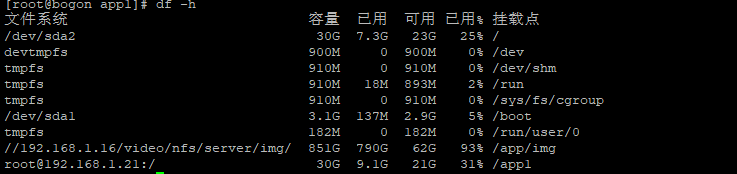
    #查看挂载情况
    
    
    在这里插入图片描述

    在这里插入图片描述
    在这里插入图片描述
    如需取消:

    #umount掉挂载点即可
    umount /app1
    

    开机自动挂载方案:

    1. 在系统启动时挂载
    crontab -e
    ------------------------------------------
    @reboot sh mountsshfs.sh
    
    vim mountsshfs.sh
    ------------------------------------------
    #! /bin/sh
    while true
    do 
        ping -c1 -w1 ssh_server_ip > /dev/null && break
    done
    sshfs -o reconnect,ServerAliveInterval=15,ServerAliveCountMax=3 user@192.168.200.10:/pathto/dir /home/username/mount/dir
    
    2.利用/etc/fstab
    user@host:/remote/folder /mount/point  fuse.sshfs noauto,x-systemd.automount,_netdev,users,idmap=user,IdentityFile=/home/user/.ssh/id_rsa,allow_other,reconnect 0 0
    参数
    noauto 不在boot时mount
    x-systemd.automount 配置按需挂载
    _netdev 避免“No such device”错误,指明sshfs是一个网络设备而非块设备
    
    注意:在完成对/etc/fstab的修改后,需要执行如下命令
    systemctl daemon-reload
    systemctl restart <target>
    这里 <target>可以使用如下命令查询
    systemctl list-unit-files --type automount

    注意事项

    1. 挂载在重启后失效
    2. 一般来说,linux系统都默认安装了sftp,挂载期间基本不用考虑sftp服务。
    3. Windows下可使用其他第三方软件开启sftp服务,或通过smb进行挂载 [CentOS]CentOS 7下通过mount cifs挂载smb资源
  • linux挂载webdav为本地路径

    1.安装davfs2

    Ubuntu/Debian下

    apt-get install davfs2
    

    CentOS下

    yum install davfs2
    

    创建目录并挂载

    mkdir /alidrive
    mount -t davfs http://172.17.0.6:8080/ /alidrive
    

    如果遇到文件夹全是问号的情况,说明你之前挂载的目录非正常断开
    修复方法如下,即可恢复

    sudo umount -l /alidrive 
    

    中途环境重新创建了容易,导致ip变为172.17.0.2

  • aliyundrive-webdav

    docker run -d --name=aliyundrive-webdav --restart=unless-stopped -p 8080:8080 \
      -v /etc/aliyundrive-webdav/:/etc/aliyundrive-webdav/ \
      -e REFRESH_TOKEN='your refresh token' \
      -e WEBDAV_AUTH_USER=admin \
      -e WEBDAV_AUTH_PASSWORD=admin \
      messense/aliyundrive-webdav
  • Hyper-V 共享式网络链接 端口映射

    远程路由访问我配置了很久都不成功,经过多方搜索,现面的命令能实现端口映射
    一、查询端口映射情况
    
    netsh interface portproxy show v4tov4
    查询这个IP所有的端口映射。
    netsh interface portproxy show v4tov4|find "192.168.1.1" 
    二、增加一个端口映射
    netsh interface portproxy add v4tov4 listenport=外网端口 listenaddress=主IP connectaddress=私网IP connectport=私网IP端口
    例如:
    netsh interface portproxy add v4tov4 listenport=8888 listenaddress=118.123.13.180 connectaddress=192.168.1.10 connectport=2222
    三、删除一个端口映射
    netsh interface portproxy delete v4tov4 listenaddress=主IP listenport=外网端口
    例如:
    netsh interface portproxy delete v4tov4  listenaddress=118.123.13.180 listenport=8888
    
    在关闭Hyper-V虚拟机的情况下,选择Hyper-V管理界面中的“虚拟交换机管理器”
    在弹出的对话框中“新建虚拟网络交换机”,选择“内部”,点击“创建虚拟交换机”。
    在IP网卡 切换到“共享”标签下,勾选“允许其他网络用户通过此计算机的Internet连接来连接”并在下方“家庭网络连接”中选择刚刚创建的虚拟交换机——vEthernet (Hyper-V Switch),点击“确认